Connect your scanner.
Connection instructions
Lab email
lab@ivorymade.com
Before you start. Sign in with a clinic administrator account in Medit Link Web. Partnership requests are not available to member accounts or in the desktop app.
Find your partner
Open Partners in Medit Link Web and search for Ivorymade by business name.
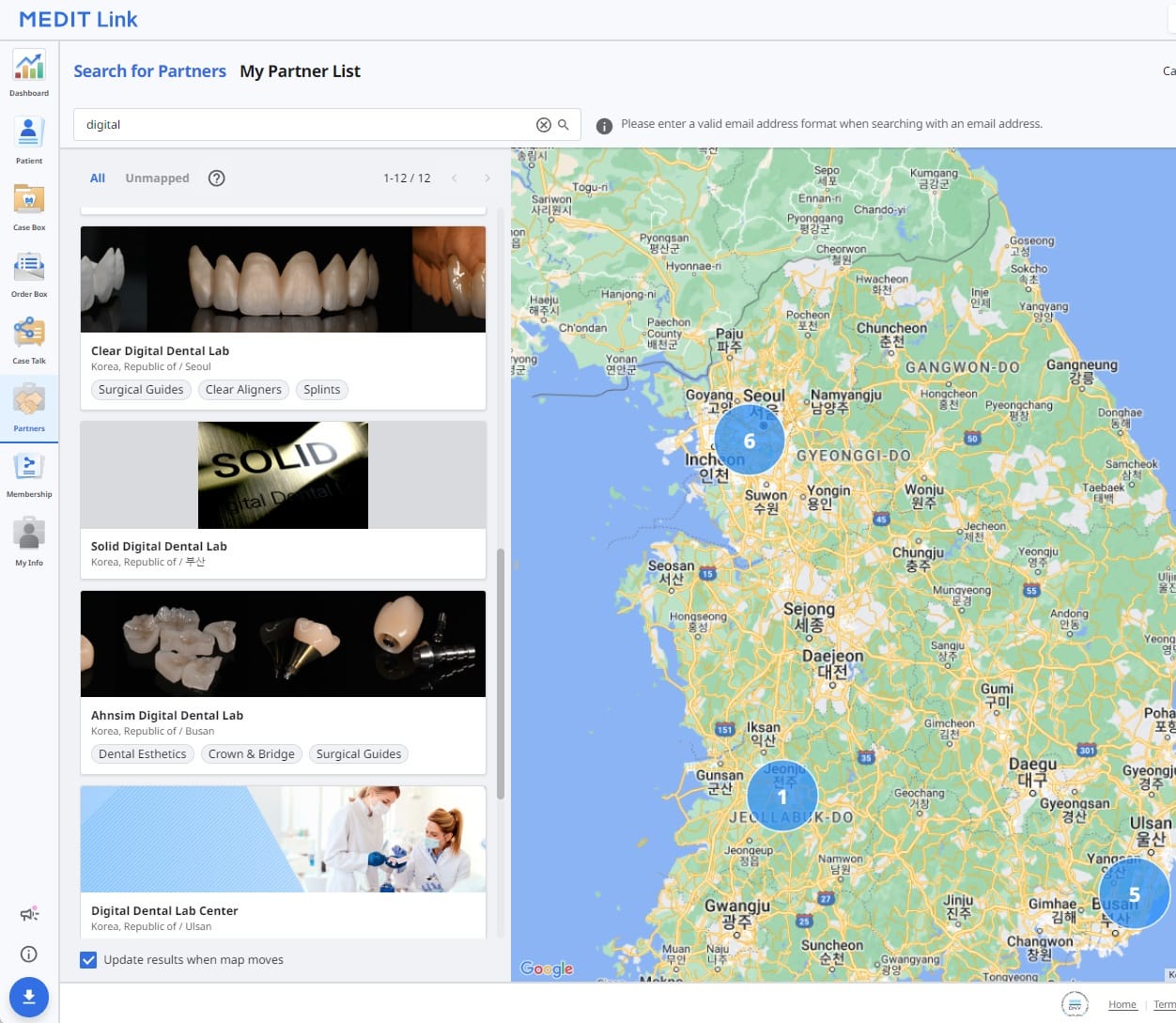
Example screen from Medit (opens in a new tab). Use Ivorymade’s lab details. Check the lab details
Select Ivorymade and verify the lab details against lab@ivorymade.com. If you cannot find the listing, contact us before continuing.
Request a partnership
Send a partnership request from the lab's partner information screen.
Wait for acceptance
Check My Partner List. The partnership must be accepted before you use Ivorymade as your partner for orders.
What happens next?
Ivorymade needs to accept the partnership request. Check your partner list for the established partnership; sending the request does not mean it has been accepted.
Connected? Send your first case.
Once the lab connection is confirmed, choose Ivorymade when sending your scan. Use your Ivorymade account for the Rx details and case communication. You can also upload STL files in the portal chat with your Rx.
Another scanner or an STL export? Ask us about your submission options.